
What we built: Exchange Online, Teams and SharePoint tests in managed runs
Managed runs now connect to Exchange Online, Security & Compliance, Teams and SharePoint Online with no new secret or certificate. Also Maester 2.3 and a much faster portal.

Until now, a managed run in Maester Cloud signed in to Microsoft Graph and nothing else. That covered most of Maester, but not all of it. Every test that needs Exchange Online, Security & Compliance, Teams or SharePoint Online was skipped, and the report said so on every run.
They were skipped because connecting to those services from an unattended run usually means a certificate or a secret, and we didn’t want to hold either for you. This release connects all four without adding a secret or a certificate.
It also moves managed runs to Maester 2.3, gives the New tests page what it needs to handle 287 new tests at once, and makes the portal much faster on long histories. The release notes have the full list.
Connect services: choose, grant, verify
Each tenant now has a Connect services button, once its Microsoft Graph connection is verified. It walks through three steps.
1. Choose services. Tick Exchange Online (which includes Security & Compliance), Microsoft Teams and SharePoint Online. A panel on the right shows exactly what will be added to your runner app: the application permissions and the directory roles, by name. Nothing is granted until you say so.
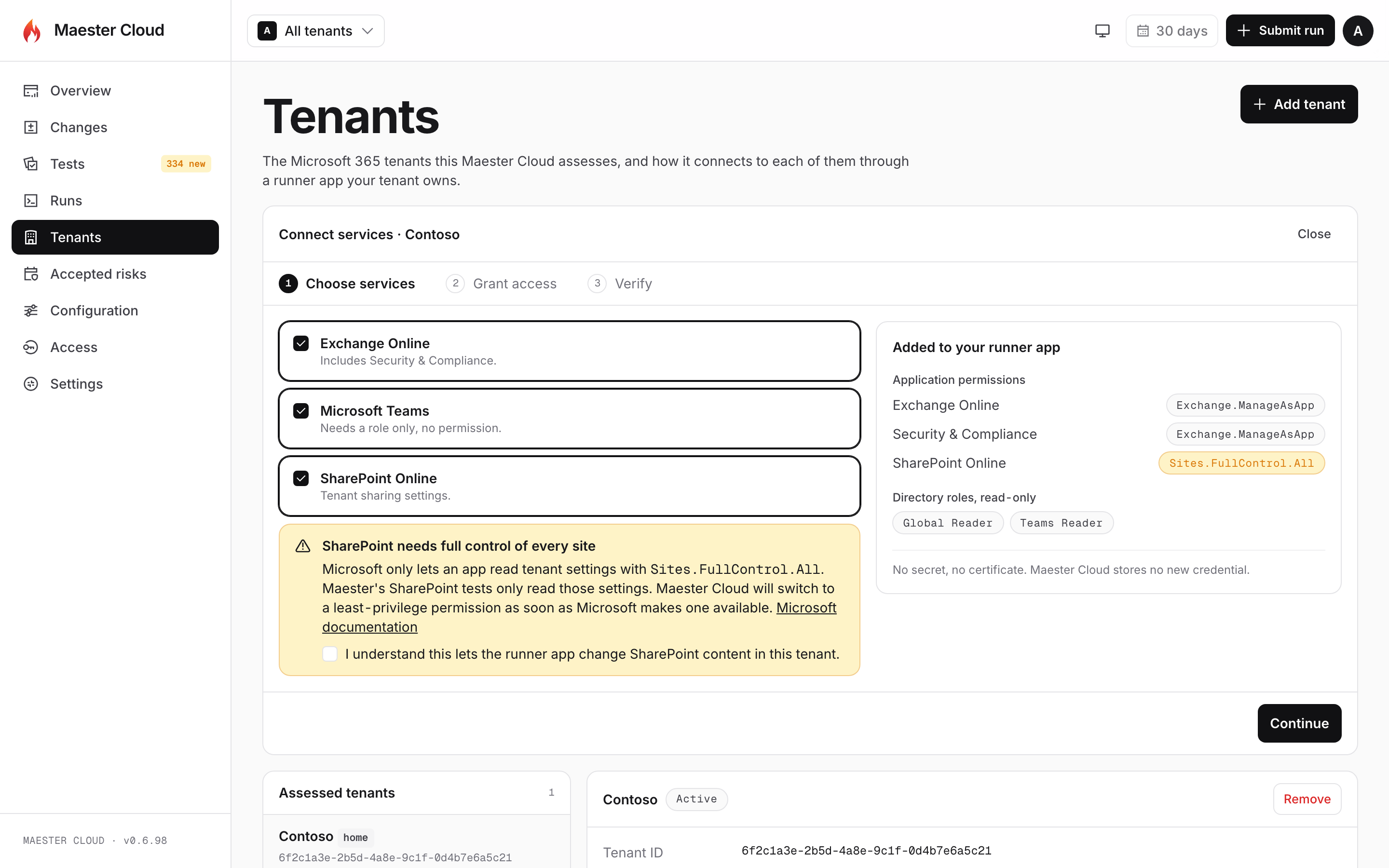
The panel on the right lists exactly what is added. SharePoint asks you to confirm before you can continue.
2. Grant access. One sign-in grants everything you ticked. There is no consent link to open for each permission and no separate step to assign roles. The first time, Microsoft may ask you to approve the setup app’s own permission to do this. If the person setting this up isn’t an administrator of the tenant, there is a script to hand to someone who is. It grants the same things and is safe to run twice.
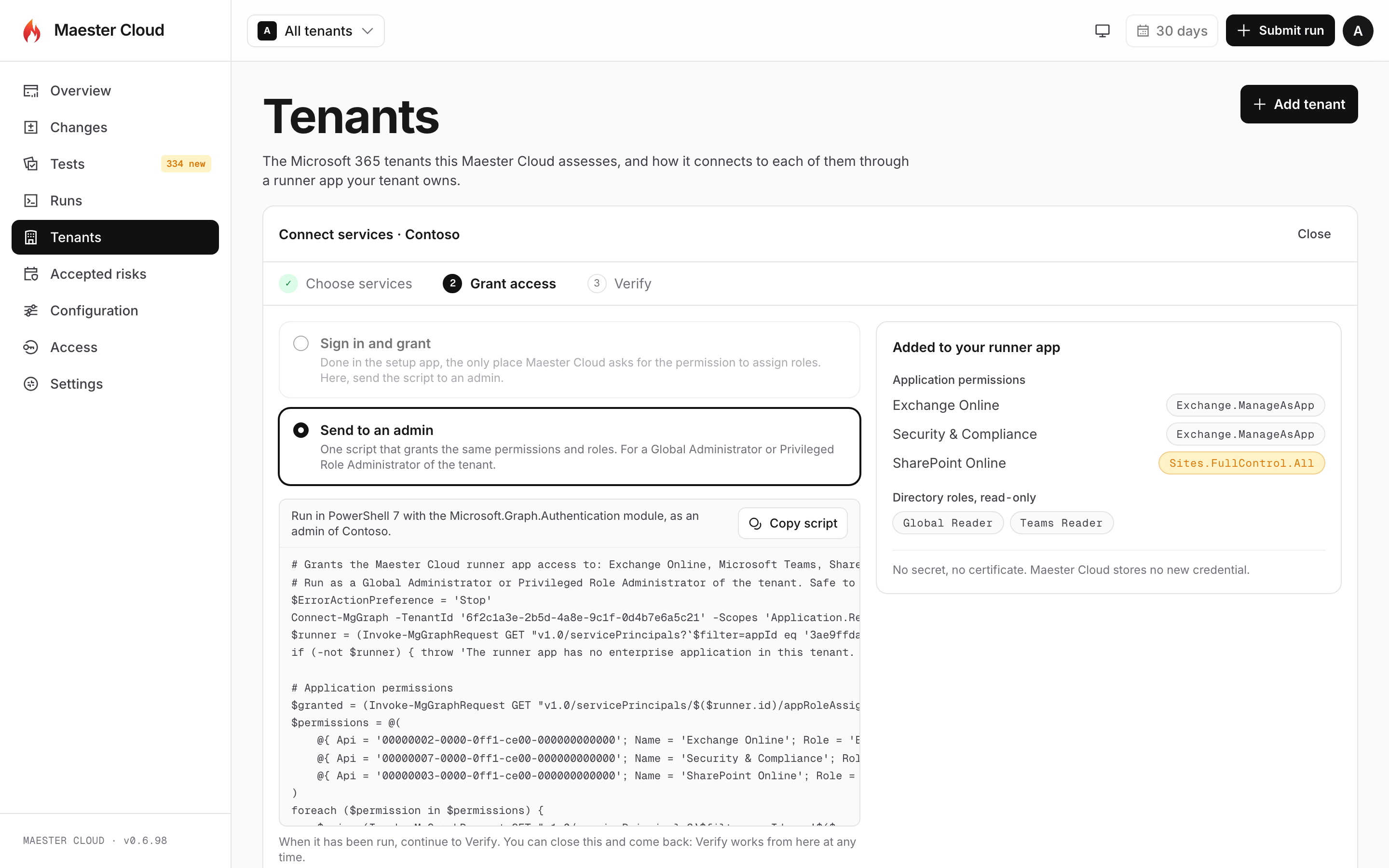
In the portal, Grant access offers the script. The one-sign-in grant happens in the setup app.
3. Verify. Each service is checked on its own, with named checks: was a token issued, is the permission there, is the role assigned. One service that isn’t ready doesn’t hold back the others.
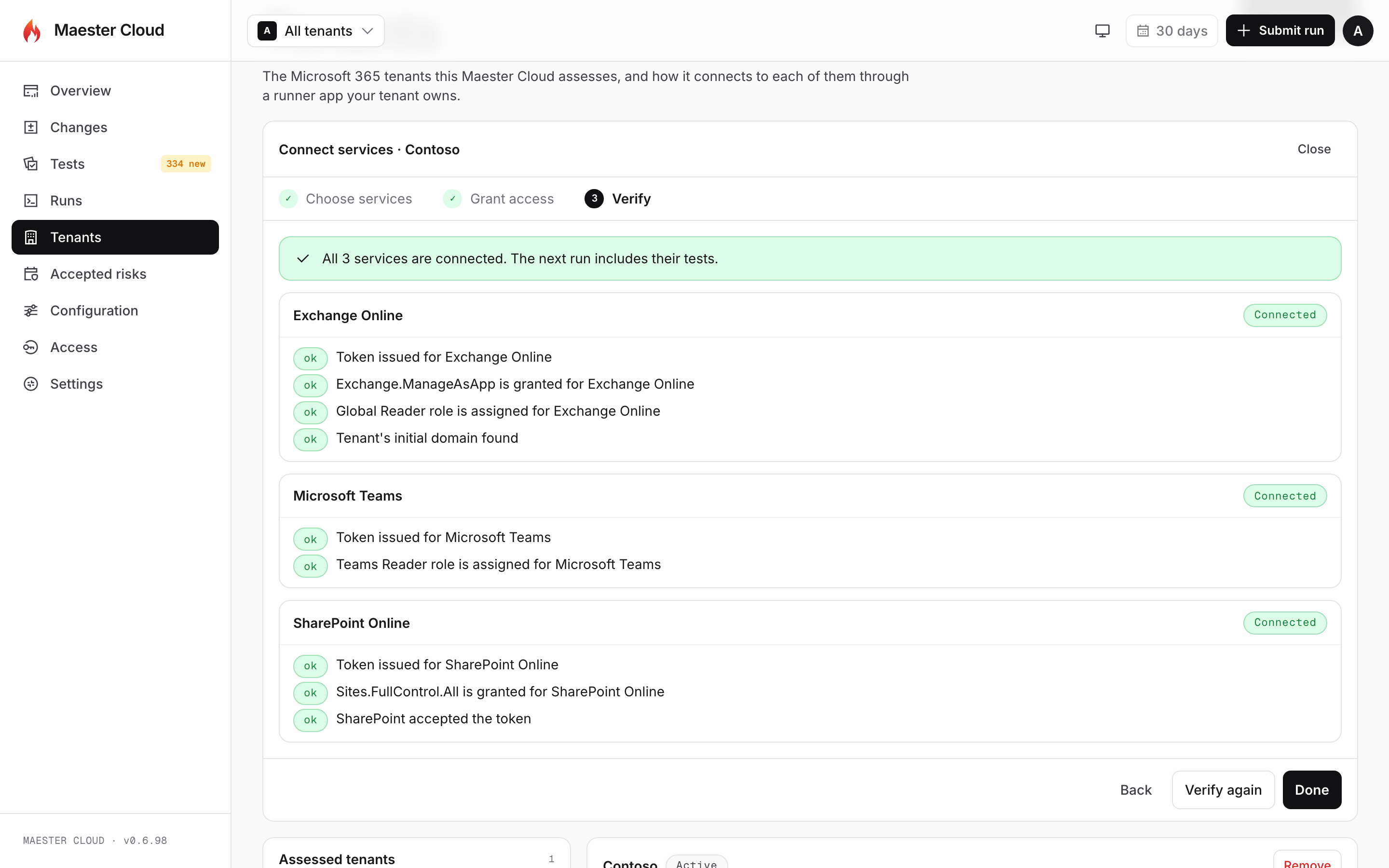
Each service is verified on its own, and each check says what it looked at.
Once Verify passes, the next run includes the tests for those services, with real results instead of “not connected”. Exchange Online can take a while to honour a newly assigned role. Until it does, a run says it couldn’t reach Exchange and skips those tests, and a later run picks them up.
What gets granted, and why
We ask for the least that works, and the roles are read-only:
| Service | Application permission | Directory role |
|---|---|---|
| Exchange Online | Exchange.ManageAsApp | Global Reader |
| Security & Compliance | Exchange.ManageAsApp | Global Reader |
| Microsoft Teams | None | Teams Reader |
| SharePoint Online | Sites.FullControl.All | None |
SharePoint is the exception, and we’d rather tell you than bury it. Maester’s SharePoint tests only read tenant settings, but Microsoft only lets an app read those settings with Sites.FullControl.All. Microsoft documents this. So SharePoint is opt-in, it is unticked by default, and you have to confirm that you understand what the permission allows before you can continue. We will move to a least-privilege permission as soon as Microsoft makes one available.
Granting happens in the setup app
Assigning a directory role needs a high-privilege sign-in. The portal’s own sign-in is deliberately kept small, so we didn’t add it there. The grant sign-in lives in the setup app, which is the one place Maester Cloud asks for high-privilege permissions, and only while you have it open. It also works for every tenant you assess, not just your own.
The portal shows your connections, verifies them, and offers the script.
Changing your mind
Each service row has Remove. Removing a connection stops runs from using it, and its tests go back to being skipped. It does not take the permission or role away from your runner app, because that is yours to remove in Microsoft Entra, and the confirmation tells you exactly what was granted.
If a grant is removed in the tenant, Verify says which one is missing. Tick the service again in Connect services to grant it again.
Maester 2.3
Managed runs now use Maester 2.3, up from 2.1. It adds 287 tests. Of those, 258 are for Active Directory, and SharePoint grows from 2 tests to 14.
Some of the new tests need Microsoft Graph permissions your runner app doesn’t have yet. There are five, and all of them are read-only:
AuditLog.Read.AllEntitlementManagement.Read.AllNetworkAccess.Read.AllRoleEligibilitySchedule.Read.DirectoryRoleManagementAlert.Read.Directory
To grant them in a tenant, after updating to v0.6.98:
- In your portal, open Tenants and choose the tenant.
- On its Microsoft Graph connection, select Details, then the Setup tab.
- Copy the PowerShell script and give it to an administrator of that tenant who can grant Microsoft Graph application permissions, such as a Global Administrator or Privileged Role Administrator. They run it in PowerShell 7 with the
Microsoft.Graph.Authenticationmodule. - Back in the portal, select Verify on the connection.
The script grants every Microsoft Graph permission your runner app needs and skips the ones it already has, so it’s safe to run more than once. Use the script rather than the admin consent link on the same tab: the link only grants the permissions your runner app had when it was created. Repeat for each tenant.
Until your runner app has the new permissions, the tests that need them are skipped. They don’t fail and they don’t turn your report red. The same is true for a service you haven’t connected.
Two things to know before you update:
- SharePoint tests need the SharePoint connection. Maester 2.3 reads SharePoint settings through SharePoint itself, not Microsoft Graph. Without the connection above, all 14 SharePoint tests are skipped as “not connected”, including the two that ran before.
- Active Directory tests can’t run in a managed run. They need to reach a domain controller, and a managed run has no path to one. If you run Maester yourself inside your network, you can still send those reports to your portal.
Reviewing 287 new tests without 287 clicks
New tests are held for review by default, so Maester 2.3 puts all 287 in your queue at once. (If you’ve switched New tests to Run automatically on the Configuration page, they run from the next run instead, and still show on the New tests page so you can turn any off.) The old New tests page showed one card for each test under a single “select all”. That was fine for four tests. It wasn’t going to work for this.
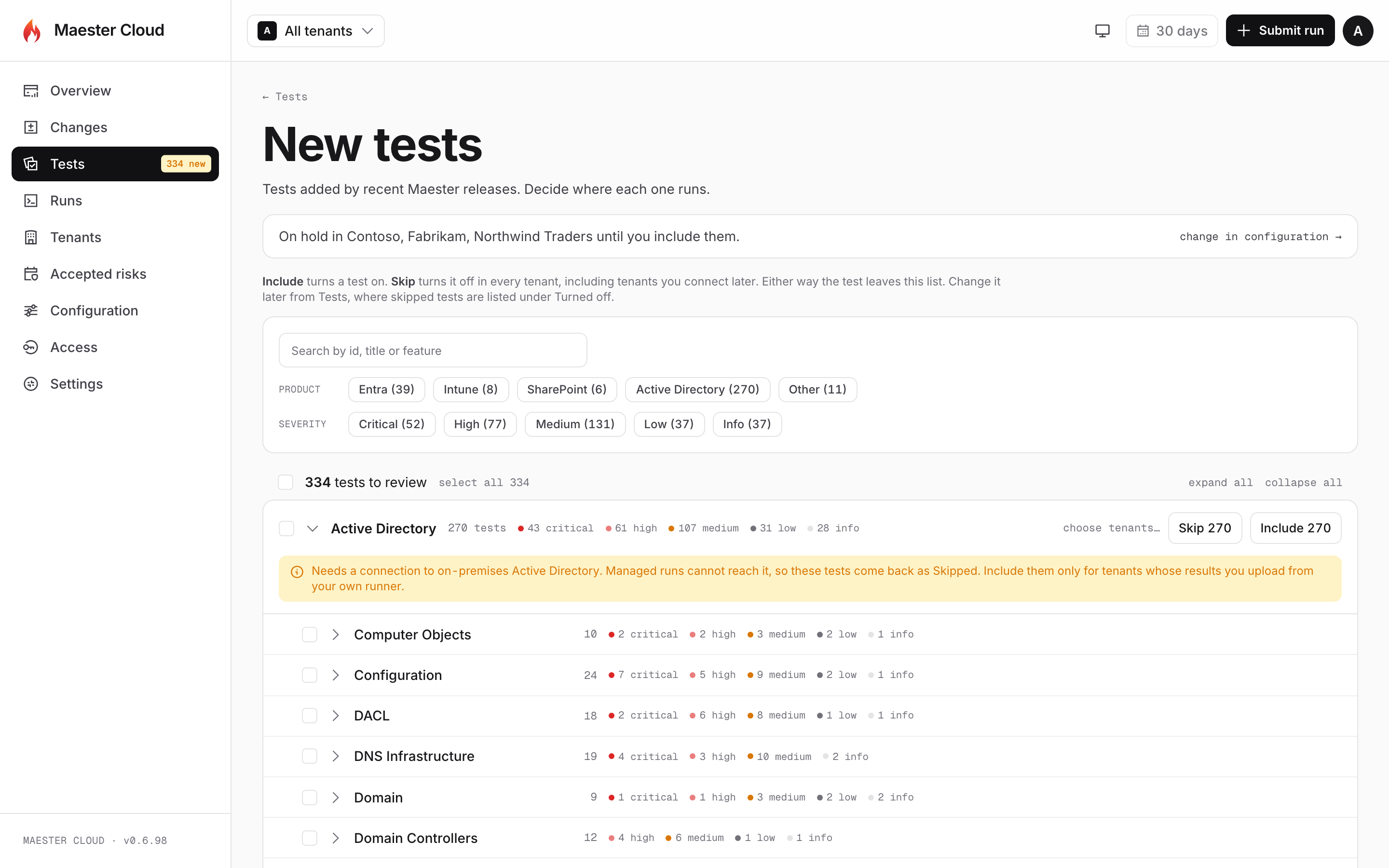
Filter by product and severity, then skip or include a whole group. Active Directory says up front why its tests can’t run in a managed run.
So the page now works in groups:
- Tests are grouped by product, and a long group splits into features. Each group has its own Skip and Include.
- Filter, then decide. Filter by product, severity or text, select everything that matches, and include or skip it in one go. Include in… picks the tenants for many tests at once.
- Decided tests leave the list. A notice confirms what you did, with Undo. Before, a decided test stayed on the page for good as a greyed-out card.
- Recent decisions are kept at the foot of the page for 90 days, one line for each product and outcome, with a way to move them back to review.
The Active Directory group says that managed runs can’t reach a domain controller, so you can skip the whole group with one click and move on.
A skipped test used to be hard to find again, because the Tests page only listed tests that had results. It now lists new tests whatever you decided. A skipped one is under Turned off, where you can turn it back on.
A much faster portal
A customer who grew from two tenants to five told us that Overview and Tests were getting slow. They were right, and it showed on our own tenant too.
The cause was simple once we measured it. Every list and summary page downloaded each test’s full description and result text, for every run it touched, and displayed none of it. Those pages now load results without the text, and the portal fetches the text for one test when you open it.
We measured with 10 tenants, 10 runs each and 430 tests, on a small instance and a 20 Mbit/s connection:
| Page | Before | After |
|---|---|---|
| Tests | 55.2 s, 139 MB | 1.9 s, 1.9 MB |
| A test, opened from the list | 55.2 s, 139 MB | 0.2 s, 35 KB |
| Overview | 6.3 s, 14.2 MB | 1.0 s, 260 KB |
| Controls | 6.4 s, 14.1 MB | 1.0 s, 222 KB |
Nothing was removed to get there. Result text still shows on the test’s page, as it did before.
A public roadmap you can vote on
This one was an ask. Customers wanted to see what’s coming to Maester Cloud, and to have a say in what we build next. Until now the honest answer was “email us”, and you never saw what happened to the request.
Maester Cloud now has a public roadmap. Anyone can see it, whether or not they’re a customer.
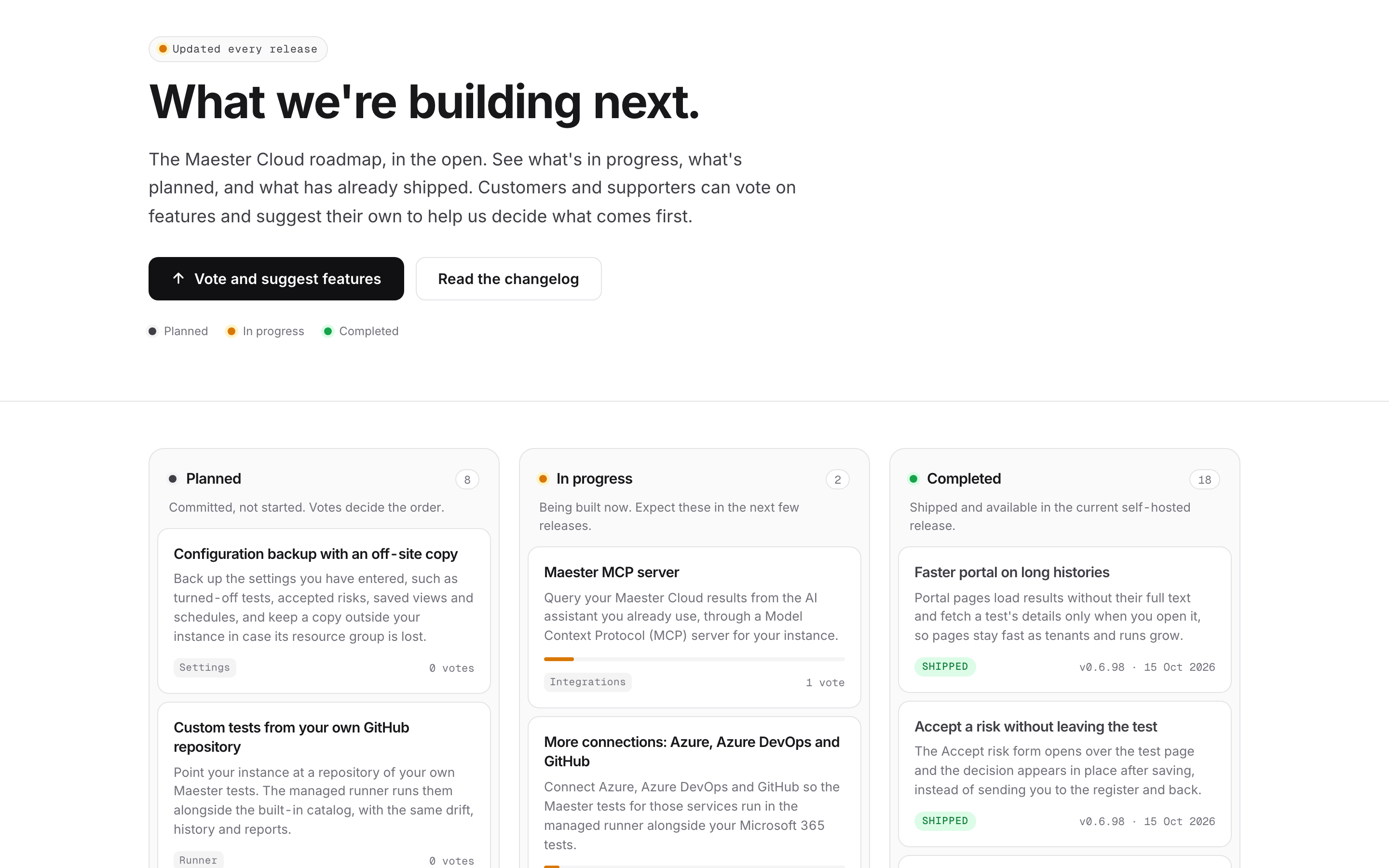
Every feature sits in one of three lanes. Completed ones show the release they shipped in.
- Planned is what we’ve committed to build next.
- In progress is what we’re building now. Most of this post moved from there to Completed with this release.
- Completed lists what has shipped, newest first, with the release and the date.
If you’re a Maester Cloud customer, you can now take part, not just read:
- Vote for the features that matter to you. Select a feature on the roadmap and sign in to the account portal to vote on it.
- Suggest a feature we haven’t listed. Every suggestion is read, and the ones we take on appear on the roadmap.
- Comment on a feature to tell us how you’d use it, or what would make it work for you.
Votes are the clearest signal we have of what to build next, so please use them. Have a look at the roadmap and vote for the features you want.
Also in this release
- Open what you click. A row on Runs opens the run, and a row on Changes opens the test. The products on Overview and Changes open the Tests list filtered to that product.
- Accept a risk without leaving the test. The form opens over the test’s page, and the decision shows there as soon as you save it.
- See the managed runner on Access. The Access page shows the identity your managed runs use, with a link to it in Microsoft Entra. Another link opens the place in Entra where you add or remove portal users.
- Guidance on the default role. The default user role has moved to a Settings card on Access. It now says when to pick which value, and recommends None unless your enterprise application requires assignment.
- Times on your own clock. Schedule windows and the daily summary time are shown and entered in your own time zone. The time zone settings are gone, and your existing schedules keep running at the same times.
- Know when report emails stop arriving. If Exchange Online starts refusing your report emails, Settings now says so, with the reason. We also fixed the cause we found: two instances in the same tenant could take the mail permission from each other.
- A calmer Email step in setup. The first time you approve Exchange Online access, Microsoft 365 takes a few minutes to apply it. Setup now waits and retries on its own. Before, it failed until you signed out and back in.
maester.fyiis the default domain for an instance’s included subdomain.- Setup guides you can copy. When a step has to be done by someone else, the manual guides in setup copy as formatted text or Markdown, with your instance’s values filled in. The guide for registering the sign-in app by hand also gained a step we had missed: setting the access token version to 2. Without it, the portal refused the sign-in.
What’s next
More connections are planned: Azure, Azure DevOps and GitHub. So are custom tests from your own GitHub repository and report packs for auditors. The roadmap has the full list. If something you need isn’t there, suggest it, and vote for what you want first.
Thank you
The faster portal started with a customer telling us what was slowing them down. If something in Maester Cloud slows you down, tell us at [email protected].
To update, open setup.maester.cloud, choose your instance, and select Update.